
Enviro FOIA: A Guide
How to use Enviro FOIA: A quick guide
Enviro FOIA is designed with two overarching principles: simplicity and speed.
We don't overwhelm you with buttons, checkboxes, and other bloat that slows down your experience and search.
This short tutorial takes you through the basics.
1. Simple Keyword Search
Type anything into the search bar to perform a basic text search.
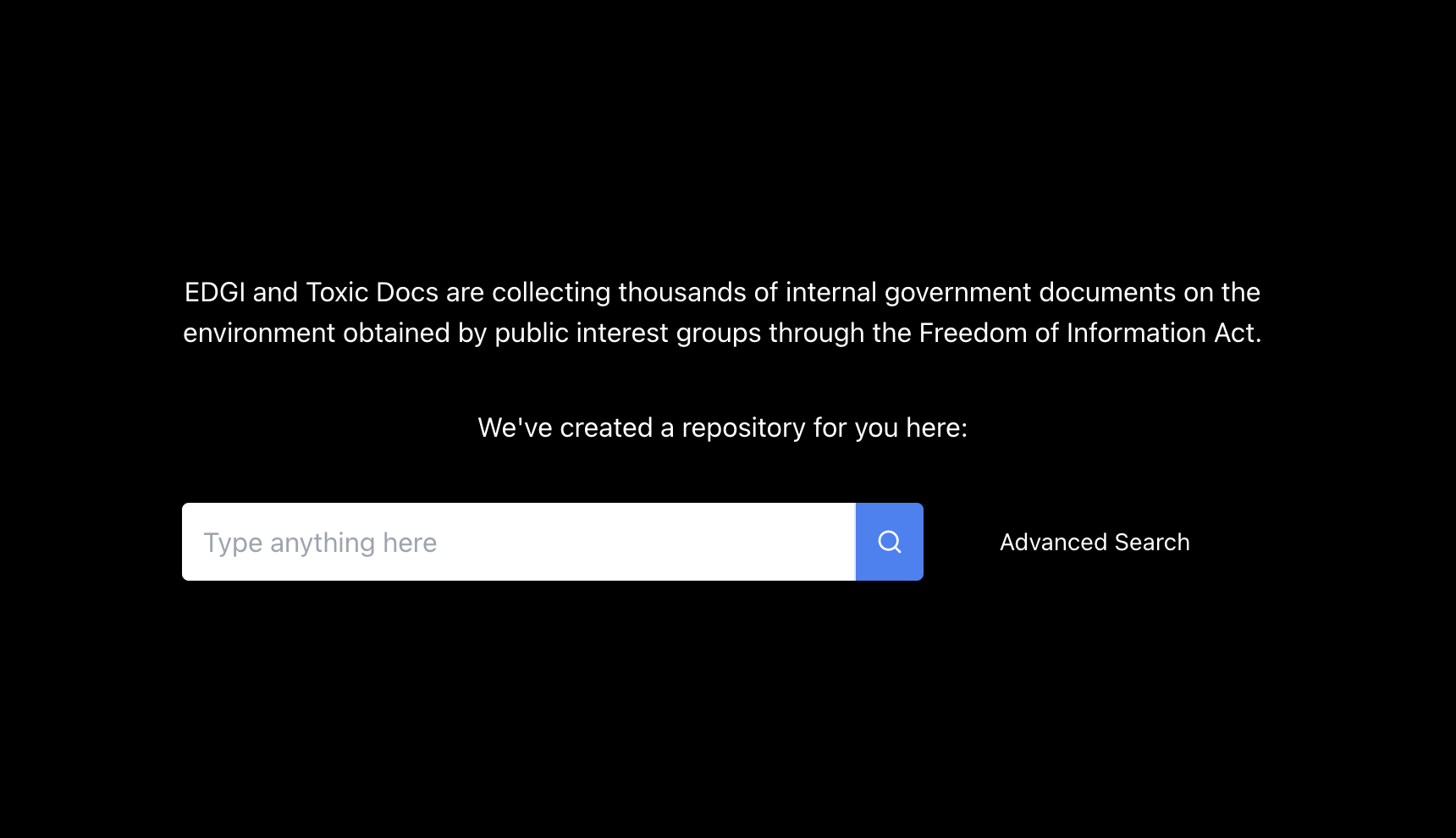
Your search terms will be highlighted in the search results.
For instance, a search of “American Coal Council" returns the following (the first of 617 results):
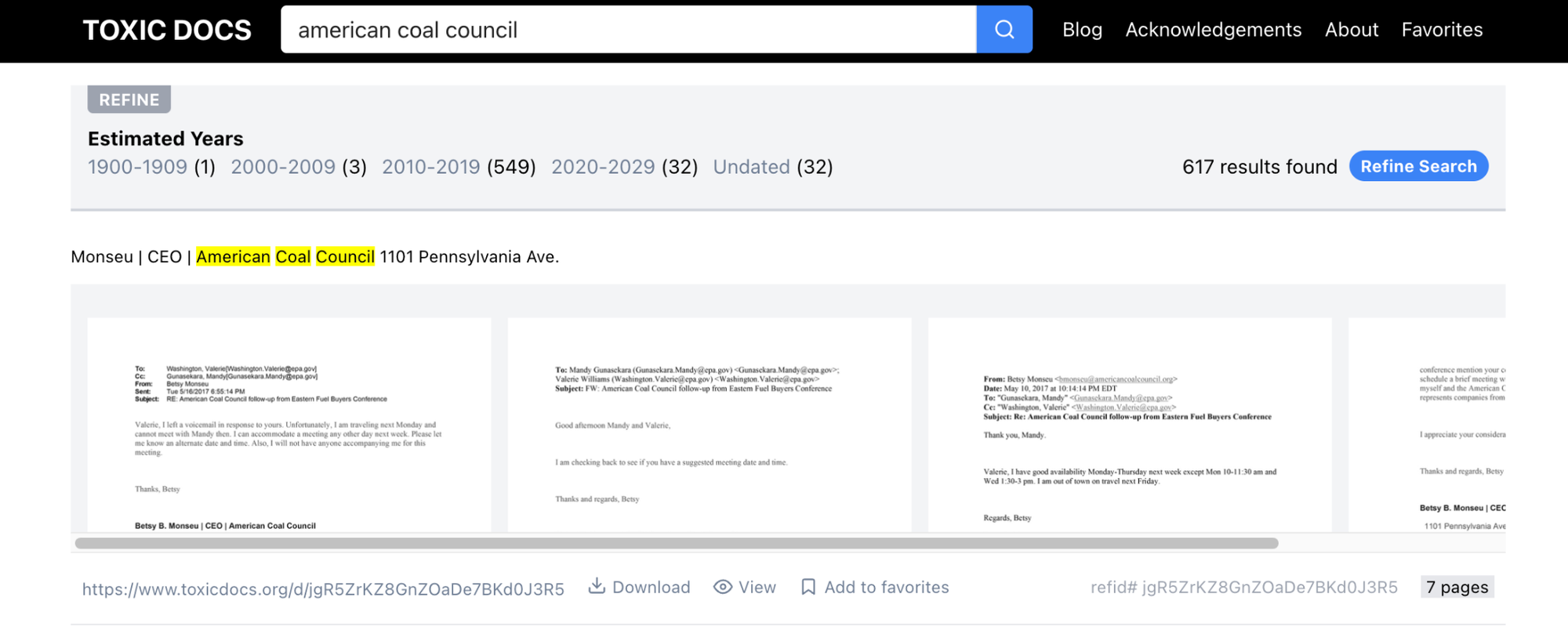
You can browse documents from a birds-eye view by scrolling up and down.
Thumbnails of each page allow you to quickly determine what kind of document you're seeing.
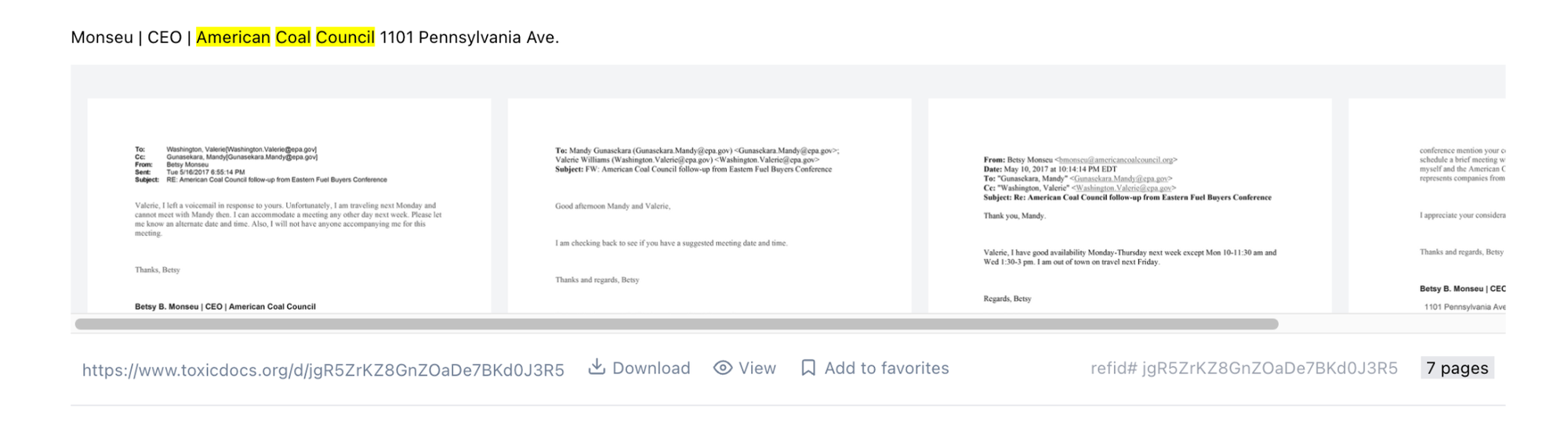
Using the horizontal scroll bar, if you scroll to the right in a multi-page document you can view more thumbnail-sized pages.
The user below is doing this for a 7-page document:
2. Paging Through a Document
Let's say you want to look more deeply at a document. Click any individual page, and you'll go to a larger version of that page.
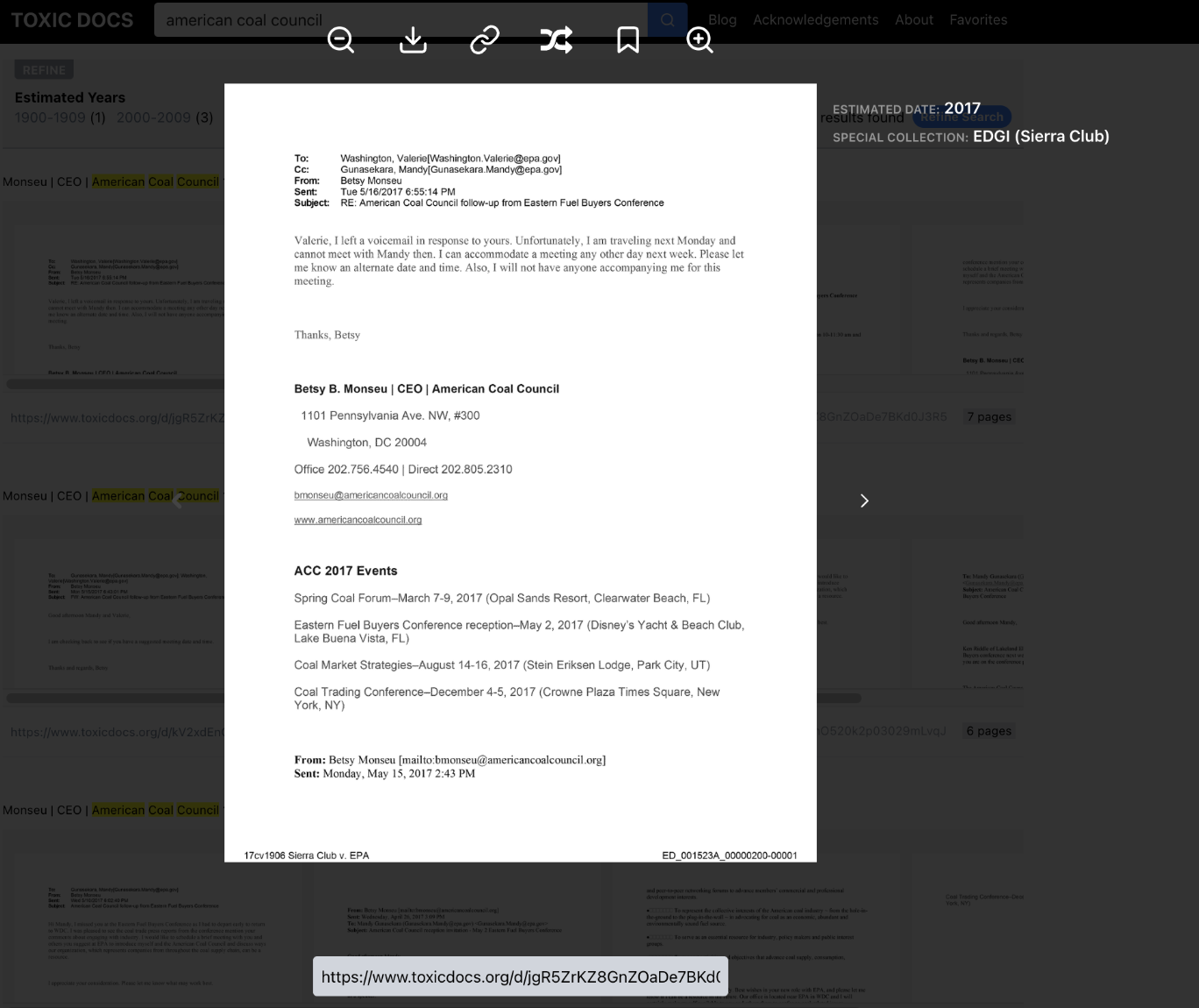
On the right side is basic information about the document. Typically, this is an estimated date, if discernible, and a denotation that the document belongs to the Enviro FOIA repository.
To flip pages, use either your ← or → arrow buttons OR just click the arrows. On a tablet, swipe.
To send a link of the particular document in question, copy-paste the address at the very bottom of the page. You can also copy the link automatically by clicking the link icon at the top:
3. Six Document-Specific Features
The icons above each page give you a range of options:


Zooms out/zooms in on a single page.
Downloads a PDF of the full document to your computer.
Copies a link to the expanded preview to your clipboard. This link is also available beneath the document. You can use this to send interesting documents to friends, post on social media, and so forth.

Generates a random document. Clicking it will pull up a random document from the entire Enviro FOIA collection. If you want to generally browse the entire collection, this is the feature for you.

Bookmarks a document. You must have an account to use this feature. See more on accounts in Section 7 below.
4. Other Ways to Navigate Search Results
Besides hitting a page, there are several other ways to engage a document in Search Results, all of which are accessible from the options listed beneath the document thumbnail previews:
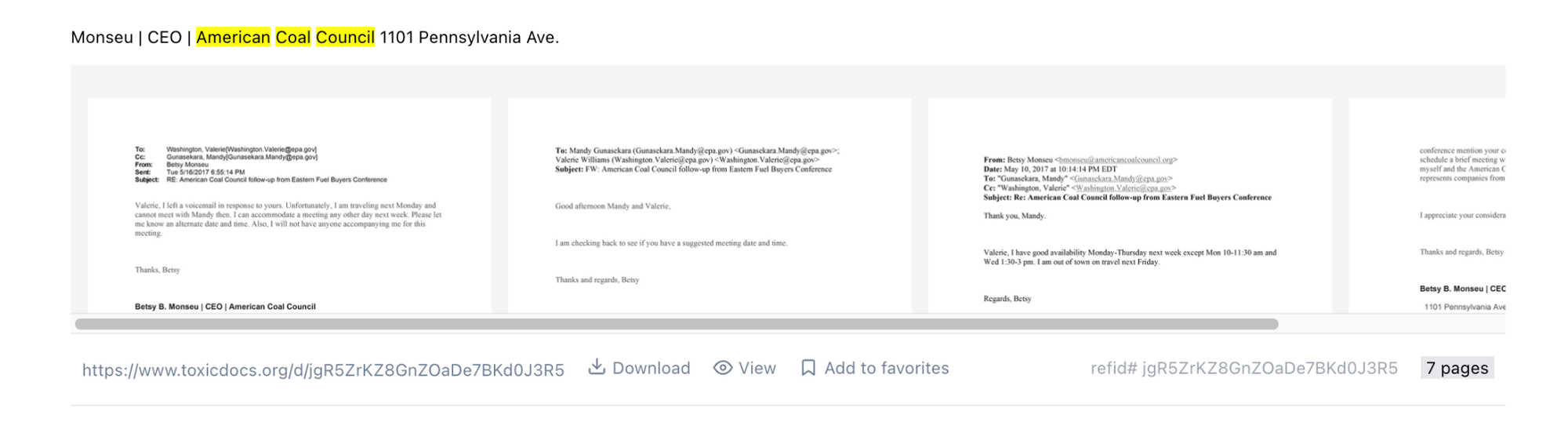
The URL takes you to a page with the full content of the document in plain text.
Download allows you to download a PDF to your computer. Note: depending on your browser configuration, it may also open up the PDF in a new tab or window.
View opens up an enlarged version of the document discussed in the section above.
5. Advanced Search
An advanced search allows you to refine the search parameters further.
To get to it, click "Advanced Search" on the home page.
Searches can be limited by range of years.
You can also submit a blank search and simply alter the filters. This allows you to browse documents without any keyword query.
An advanced search can also be used to refine search results. Simply scroll to the top of the search results page, then click "Refine Search" in the lower right-hand corner.

6. Fresh Reset after Advanced Search
Whenever you want to start fresh, the best course of action to flush out all filters you've used is to simply go back to the home page. An easy way to do that is to click "Enviro FOIA" in the upper left-hand corner of the screen.
7. User Accounts and Bookmarks
Creating an account is optional and enables you to bookmark documents as you browse and save them to a “Favorites” page.
Make an account: click "Sign Up" on the home page. When prompted, fill in an email and password. You will be redirected to the homepage.
Marking Favorites: Once logged in, click the bookmark icon on either the search results page or when viewing the enlarged version of the document. The bookmark icon looks like this:

Viewing Favorites: To view the documents you have bookmarked as favorites, navigate to the top right corner of the site and click “Favorites”.